New three-monitor (4K + 5K + 4K) setup for my 2014 Mac Pro
Posted by Pierre Igot in: MacintoshMay 26th, 2017 • 5:42 pm
Like many other professional Mac users, I suspect, I was quite relieved when Apple finally shared, in early April, with a select panel of writers who cover Apple news, their plans for the Mac Pro and, more generally speaking, for pro and “prosumer” users of Macintosh computers.
When the new Mac Pro was announced in 2013, I was still using a workstation consisting of a 2009 Mac Pro with 12 GB of RAM, two SuperDrives (one for Region 1 and one for Region 2), and two GeForce GT 120 video cards driving two 30″ Apple Cinema Displays (each with a native resolution of 2,560 x 1,600 pixels). I had, in previous years, changed my startup drive from the conventional 1 TB hard drive that came with the Mac Pro to a 240GB Mercury EXTREME Pro 6G SSD from Other World Computing, and I had three conventional hard drives in the other three internal bays, as well as some external FireWire hard drives for backup.
I was reasonably happy with the 2009 Mac Pro, but of course, by that time it was getting a bit long in the tooth and I started lusting after the new Mac Pro. What I found particularly attractive was its promise of near-silent operation. While the 2009 Mac Pro was not outrageously noisy, it still was far from silent. Now, I knew, of course, that, with no internal bays for hard drives, even if I got a large internal SSD for the 2013 Mac Pro, I would still need external drives, and those could be quite noisy. But I also knew that Thunderbolt offered the possibility of a very long cable connection between the drives and the computer, which meant that I had the option to relegate the hard drives to a more remote location.
Because of past experience with problematic devices (the original Titanium PowerBook G4 with its very poor AirPort reception, and the disastrous mooing MacBook), there was no way that I was going to be an early adopter of the 2013 Mac Pro, so I waited until well into 2014 before purchasing one.
In July 2014, I bought a new Mac Pro with 32 GB of RAM, a 1-TB SSD internal drive, along with a 32″ 4K Sharp PN-K321 display (3,840 x 2,160 pixels), a miniDisplayPort-to-DVI adapter for one of my 30″ Apple Cinema Displays, and an external Promise Pegasus2 R4 Thunderbolt 2 unit with four 2 GB conventional hard drives, with a 30-foot Thunderbolt 2 cable to connect the Pegasus2 R4 to the Mac Pro. (It was an expensive order.)
When we moved to our new house in December 2014, I was able to move the Pegasus2 R4 to the basement, which meant that I now only had the Mac Pro and the displays on my desk in my office. It was close to perfectly silent operation most of the time. (Occasionally, when it gets quite warm in the room, the Mac Pro fan does kick in a bit, with a somewhat annoying high-pitched whine, but it’s fairly rare, and nowhere near as annoying as the constant whir of the fans in conventional hard drives.)
At first, it didn’t really bother me or worry me that Apple didn’t release upgraded versions of the 2013 Mac Pro. I was happy with my machine, and the lack of upgrades meant that I didn’t even have to worry about being tempted by a new Mac. But then, of course, after a couple of years, the complete lack of upgrades caused me to start worrying, like many others, about the long-term future of the Mac Pro and about the future of the Mac platform in general. (My dismal experiences with OS X on the Mac Pro, especially with Yosemite, did little to help dispell my concerns.)
Then I had another bad experience with OS X, this time with El Capitan and the random temporary video freezes it would cause on my Mac Pro. As reported earlier on this blog, the problem was initially misdiagnosed by Apple as a hardware problem, which forced me to leave the Mac Pro at the Apple store for about 10 days back in December 2016. This unfortunate situation indirectly led me to make the somewhat impulsive decision to purchase a new iMac 5K. The idea was that I would use it as a replacement for the Mac Pro for 10 days, and then, when I got my Mac Pro back (presumably fixed), I would give the iMac 5K to my wife to replace her own desktop machine, which was my older 2009 Mac Pro. (Performance-wise, the older Mac Pro was more than enough for her, but of course, she too dreamed of a quieter machine, and the 2009 Mac Pro was now seven years old…)
My idea was that not only it was time to get a new Mac for my wife anyway, but also that I would get to test-drive the iMac 5K as a workstation for my own office for 10 days. At that stage, in December 2016, there was still complete radio silence from Apple about the future of the Mac Pro, and even about the Mac more generally speaking. I figured that, if indeed they were to abandon the Mac Pro altogether, I might have to fall back on a beefed-up iMac as an alternative, and I wanted to see if it was feasible.
My conclusion after 10 days was that it was indeed feasible. It would not be ideal, because the performance level on the iMac 5K with a 2 TB Fusion drive was not quite on par with the 2014 Mac Pro, but it was not too slow, and I would always have the option to get an iMac with an SSD drive instead of a Fusion drive.
I must admit that I was also curious to see what it would feel like to work with a Retina monitor for the first time. I had first-hand experience with Retina on the iPad and on the iPhone, but not on a desktop computer. (I had never owned a Retina laptop either.) My view had always been that it was more important for me to have lots of screen real estate than to have a very high resolution.
I was able to set up the iMac 5K with my 4K Sharp PN-K321 monitor as a secondary display, and thus get a display setup that was somewhat similar to what I was used to on the Mac Pro (with the Sharp PN-K321 display as my main display and a 30″ Apple Cinema Display as a secondary display) — except with a better-quality picture all around.
Then I got my Mac Pro back (with a replacement video card that did nothing to fix the random video freezes — which turned out to be fixed by upgrading to Sierra later in December), I had to give up the iMac 5K. I didn’t really miss it, except… that I had been bitten by the Retina bug. There was just no denying that things looked much better in macOS with Retina, and so I started experimenting with my existing setup on the Mac Pro and exploring my options.
The first that I did was that I tried using the Sharp PN-K321 display in “scaled” resolution, i.e. in Retina mode. That meant sacrificing quite a bit of screen real estate, because I was now down to an effective resolution of 1,920 x 1,080 pixels (as opposed to the native 3,840 x 2,160 pixels), but I also had to admit that, even with the native 3,840 x 2,160 resolution, I was only able to have two document windows open side by side, with a high zoom setting (around 200%, to make the text readable at a comfortable level). Now I could still have two documents side by side, with a more normal zoom setting (a little over 100%), but the text looked undeniably better.
The one major drawback in this approach was that, since the Sharp PN-K321 monitor was my primary display, the whole macOS user interface was now much bigger and taking more space. I could use some settings in macOS itself or in third-party tools for tinkering with hidden macOS settings to try and minimize the impact of the switch, but there were still things that I could do nothing about. The menubar itself, for example, was now pretty big, with much less room for menu extras on the right. (I was already a Bartender user, but I had to move more items to the secondary bar.) Also, all the controls in individual applications were bigger. For certain things, it was not too much of a problem. Dialog boxes might have been larger, for example, but they didn’t have to stay open all the time. For other things, which had to stay open and visible all the time, it was more of a problem. The Word 2016 user interface and its “Ribbon” for example, now had much less space available to display controls, so that fewer controls were visible at any given time, and some only in compact form, as opposed to the more expansive form that I was used to. Similary, I had to reorganize my DragThing docks, my BBEdit palettes, my Adobe InDesign palettes, and so on.
Still, I was willing to live like that for a while, with the Sharp PN-K321 monitor in Retina mode as my main display and with the 30″ Apple Cinema Display at native resolution as a secondary display. (It also helped that I was able to fairly quickly adjust my Keyboard Maestro macros for shuffling windows around and resizing them automatically.)
My long-term goal, however, was to seriously investigate the possibility of acquiring a 5K display for my Mac Pro. I must say, however, that I was quite disappointed in the lack of results when I tried searching for information about this online.
For one thing, Apple’s own documentation on this is lacking. If you check the page titled “Use multiple displays with your Mac Pro (Late 2013)”, for instance, it still reads:
You can connect up to six of the following properly-configured displays to your Mac Pro (Late 2013).
- Six Apple Thunderbolt Displays (27-inch), Apple LED Cinema Displays (27-inch), or third-party Mini DisplayPort displays.
- Three 4K displays: two connected via Mini DisplayPort and one connected via HDMI.
- One 4K Ultra HD TV or 4K display using HDMI and four Apple Thunderbolt Displays (27-inch), Apple LED Cinema Displays (27-inch), or third-party Mini DisplayPort displays.
- Two HDMI (HD or 4K) devices: one connected via HDMI and one connected via Mini DisplayPort with an HDMI adapter.
- Six DVI displays. This configuration requires an active DVI adapter.
Not a single mention of 5K displays on this page! Granted, 5K displays weren’t even available when the Mac Pro first came out, but they became available soon after, and there were enough mentions of people using a monitor such as the Dell UP2715K with a Mac Pro online to indicate that this was feasible. Of course, when you are talking about hardware products by companies other than Apple, the situation with the documentation is even more abysmal. Even today, if you do a Google search for “Dell UP2715K mac pro”, the very first result you get is… a knowledge base article from Dell titled “Issues Apple Mac platform users may encounter using the UP2715k Dell UltraSharp 27 Ultra HD 5K Monitor”. Not an article about how to do it, but an article about the problems you may encounter if you try to do it!
To make an already long story not too much longer, after reading all this and other stuff, I decided to take the plunge and order a Dell UP2715K for the Mac Pro. Based on what I had found online, the monitor itself would come with the dual DisplayPort-to-Mini-DisplayPort (DP-to-mDP) cable required to connect the monitor to the Mac Pro.
Unfortunately, when I looked at Dell’s own shop pages, I found that there was a page about the monitor, but it was listed as being discontinued and being replaced with a new product. (This was in January 2017.) But when I clicked on the link to see the new product supposed to replace it, it took me… nowhere. (I can no longer show you all this, because this page for the monitor in Dell’s own online store no longer exists. All that is left on the Dell web site is the support page for the product.)
I still found the monitor for sale at Amazon.ca and at NewEgg.ca. Amazon had several offers for it, including one where the monitor was sold by Amazon itself and a few others where it was sold by third parties through Amazon. Even though the Amazon.ca offer said “Usually ships within 1 to 2 months”, I was not in a hurry, and I have had nothing but good experiences with purchases from Amazon.ca, so I decided to go for that option. (It was also a bit cheaper than the other offers.)
Two months later, however, I got an automatic notice that the shipment was delayed by another month. I still wasn’t in a hurry, so I decided to wait. Once month later, same thing: shipment delayed by another month. At that stage, I decided that there was a good chance that it might never ship, and there were no further news about the “replacement” product from Dell either, so I decided to go with NewEgg.ca. By now, NewEgg had several offers from third parties, including one that had a pretty good price for the monitor (cheaper than the original Amazon offer) and a reasonable fee for shipping. I cancelled the order from Amazon and ordered that one instead.
One week later, the Dell UP2715K was delivered by UPS. It had everything in the box that it was supposed to have, including the dual cable that I needed. Of course, I knew that, it being a Dell product, it was probably not going to work without some effort and configuration. And sure enough, when I tried to connect it, nothing happened. I had disconnected the 30″ Apple Cinema Display with the mDP-to-DVI adapter and tried to connect the Dell while the Sharp was still connected, but I didn’t get anything.
I tried fiddling with cables, rebooting, etc. to no avail. Then finally I realized that the Dell was probably not smart enough to automatically detect what it was connected to, so I fiddled with the Dell’s own buttons on the side of the screen. Sure enough, even though I had used the two available DisplayPort connections on the monitor, for some reason it was configured to use something else as the “input” by default. (I cannot remember now whether it was HDMI or something else.) Once I told the Dell to use the correct source as input, I finally got something! But then all of a sudden I could no longer get my Sharp PN-K321 monitor to work. I had the 5K monitor as my main display, but the Mac Pro refused to see the 4K Sharp monitor as a secondary display.
Then, because of the lack of documentation about this online, I started to worry that maybe the Mac Pro was not able to handle both a 5K monitor and a 4K monitor at the same time via Thunderbolt/miniDisplay.
I thought that it was time to get on the phone with Apple and try and get some clarification on the whole situation. (Because I bought the Mac Pro in July 2014 with the three-year AppleCare coverage, I am still under warranty until July 2017, so I figured I would take advantage of it before it was too late.)
The first representative I talked to was predictably useless. But she was also humble enough to realize that this was beyond her level of expertise and she immediately referred me to a “special advisor” named Alan. Alan was pretty good and immediately realized that I knew what I was talking about. He didn’t have too much expertise on the Mac Pro with multiple displays himself, but he was able to do some digging and find another web page on the Apple site that seemed to be more up to date, and actually said that the 2013 Mac Pro had the following specifications:
Display Support
- Connect up to:
- Three 5K displays
- Six Thunderbolt displays
That was more like it! But now the question was: If the Mac Pro did indeed support up to three 5K displays, how come I could not get it to work with one 5K display and one 4K display?
First of all, Alan drew my attention to the original page on the Apple web site titled “Use multiple displays with your Mac Pro (Late 2013)”. While the information was obviously outdated (compared to the other page) the diagram did indicate that, while the Mac Pro had six Thunderbolt/miniDisplayPort connections, all six were not interchangeable, and the underlying technology was based on three Thunderbolt buses only. Two ports were for Bus 1, two ports were for Bus 2, and the last two were for Bus 0, with the Mac Pro’s HDMI port also being on Bus 0.
What this meant is that, if, say, you did want to try to connect three 5K displays to the Mac Pro, you’d have to connect each display (with its two required mDP connections) to a different bus. It also meant that, even for a single 5K display, the two mDP connections for the display had to be on the same bus, and that presumably would free up the other two buses for other displays.
So we tried that while I was on the phone with Alan. I put the 5K display on Bus 1, and tried to connect the Sharp 4K display on Bus 2. It still didn’t work. Ditto with Bus 0. Alan had no idea why. Finally, he suggested trying to connect the Sharp 4K display via HDMI instead, just out of curiosity. I did have a spare HDMI cable, so I tried and… it worked! Success! I had two displays again… except that HDMI on the Mac Pro doesn’t support 60 fps for such a high resolution, so I had to use the 4K Sharp at 30 fps instead, which didn’t feel very smooth. It was tolerable for a secondary display, but not great.
Alan agreed with that, and said that he would have to talk to his sources in engineering to find out why I wasn’t able to connect the 4K display via mDP.
Then, out of curiosity (but also because I had always dreamed of having not just two, but three displays on my desktop), I asked Alan if we could try connecting the 30″ Apple Cinema Display with the mDP-to-DVI adapter back to the Mac Pro as well. But we got nothing. That didn’t seem right, since that monitor wasn’t even a 4K display. But something appeared to be seriously wrong since I had connected the 5K display.
Alan said to leave it with him and he would get back to me.
Meanwhile, because I am an experienced troubleshooter, I decided to try a couple more things. First of all, I noticed that, when I connected the 30″ Apple Cinema Display with the mDP-to-DVI adapter to the Mac Pro, the small white LED on the Cinema Display wouldn’t even come on, even when I pressed the Power button. (The Cinema Display has one of these frustrating touch Power buttons that have no physical state and no moving parts. You just tap on it and assume that it registers it as meaning “ON”. Tapping on it in this case, even repeatedly, produced nothing.) I also noticed that the connection between the power brick and the cable was a bit frayed. I had never noticed this before, but I wondered whether things were hanging by a thread and my moving things around one more time had finally caused the physical connection to give up the ghost, even though it only looked like the insolation around the electrical wiring was a bit exposed.
So I brought my old 2009 Mac Pro back up from the basement and tried connecting the Cinema Display to its DVI port directly. And… it worked just fine. The monitor came on, with the small white LED glowing, and everything was peachy. So the damaged physical connection to the power brick was not an issue, and the monitor itself worked fine. Could there be something wrong with the mDP-to-DVI adapter, then? After all, when I checked the reviews for the product on Apple’s web site, they were far from glowing, and several people complained about failures after a few months…
Well, I had one way to find out: I could try plugging the Cinema Display with the mDP-to-DVI adapter to my wife’s iMac 5K upstairs. I tried that, and… it didn’t work. The Cinema Display had the same symptoms as with my Mac Pro: No picture, no white LED coming on, no matter how many times I pressed that frustrating touch power button.
So it started to look like the mDP-to-DVI adapter had all of a sudden died on me, at the same time I had decided to set up a new 5K display for my Mac Pro. Too much tinkering for its taste?
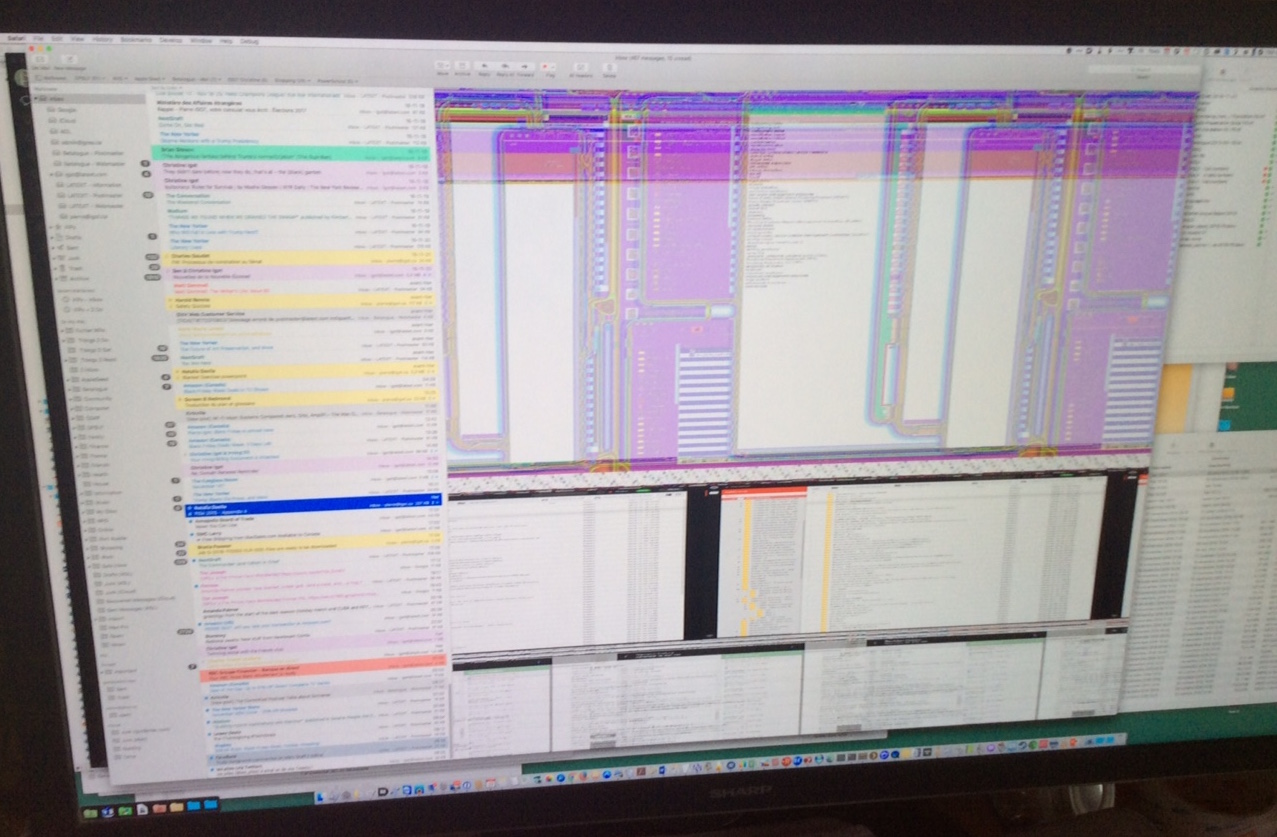
Then my troubleshooter’s mind continued to whir and I started wondering about the cable connection between the Sharp 4K and the Mac Pro. One thing that made me a bit suspicious at that stage was that, for the past year or so, I had been experiencing weird problems with my Sharp 4K display and the Mac Pro: Sometimes, when I would wake the display from sleep, only half of it would come back on, and the other half would stay black. When that happened, even rebooting the Mac Pro didn’t help. The only solution that I had found was to physically unplug the DP-to-mDP cable from the Sharp to the Mac Pro on the Sharp’s side and plug it back in. I could even do that without rebooting the Mac Pro. (Thunderbolt/Mini DisplayPort is plug-and-play.) The only problem is that, of course, when I did that, macOS would reshuffle all my windows, because I would be temporarily back to one monitor only. So I would have to manually reorganize my windows each time this happened, which was an annoyance. Then in more recent months I had noticed a new problem with the Sharp 4K display and the Mac Pro: Sometimes, while I was working, half of the Sharp screen would go black for a few seconds and come back on, or the entire screen would go black and then come back on. I could go days without a single incident, or sometimes it would happen several times a day. Rebooting the Mac didn’t seem to make any difference. Since this particular had started more recently, I had good reason to believe that both issues (the screen staying half black after sleep, and the screen going half black or completely black randomly) were actually software bugs, the second one having been introduced by a more recent system update. (I know from experience that bugs that only affect a small subset of users can fly under the radar for a long time, so nothing surprises me anymore.)
But now, in light of these new developments coinciding with my purchase and installation of the new 5K display, I started wondering whether there was something else going on, and maybe it was a hardware problem with the Sharp 4K itself or with the cable. The only way to find out for sure was to test the Sharp 4K with a different cable… except that I didn’t have another mDP-to-DP cable. I only had the dual mDP-to-DP cable for the Dell 5K, and that single mDP-to-DP that originally came with the Sharp 4K and now looked somewhat suspicious to me. I could probably use one half of the dual mDP-to-DP cable with the Sharp 4K, but then I couldn’t use the Dell 5K at the same time. And since I could no longer use the Cinema Display with mDP-to-DVI adapter with the Mac Pro either, I was kind of stuck… I could order a new single mDP-to-DP cable online, of course, but it would take at least a few days to arrive, and I wanted to test things right away.
So I did the only thing that I could do, which was to take my Sharp 4K display upstairs and try to use one half of the dual mDP-to-DP cable from Dell to connect it to my wife’s iMac 5K. And guess what? It worked like a charm.
This seemed to indicate that the Sharp 4K itself was not the culprit, and that the problem was indeed with the single mDP-to-DP cable that originally came with the Sharp display, which might have been defective from the start or at least for a long time (hence the problems I had been having with the Sharp 4K and the Mac Pro, with half of the screen going or staying black) and might just now have died altogether.
There was only one way to prove this conclusively, which was to order a new mDP-to-DP cable from NewEgg. I figured that, while I was at it, instead of ordering a new mDP-to-DVI adapter from Apple, which was expensive, I would also order a cheap DVI-to-HDMI adapter from NewEgg and try to use that to connect the Cinema Display to the Mac Pro (via the HDMI port, which is on Bus 0). I could have the Dell 5K with the dual mDP-to-DP cable on Bus 1, the Sharp 4K with a new single mDP-to-DP cable on Bus 2, and the Cinema Display with an HDMI adapter on Bus 0. That should work.
I ordered the stuff. It came within a week, and I was able to confirm everything, i.e. that the single mDP-to-DP cable from Sharp was indeed toast, and that the Cinema Display worked with the Mac Pro via HDMI… except that this flavour of HDMI (at least) is limited to a 1920 x 1080 pixel resolution, which of course is significantly lower than the Cinema Display’s native resolution.
I got back to Alan with all this information (which meant that I had effectively done his work for him, but never mind…). We were both a bit shocked by the very weird fact that both my single mDP-to-DP cable from Sharp and my mDP-to-DVI adapter from Apple seemed to have failed at the same time, and also at the same time that I decided to purchase and install a new 5K display for my Mac Pro! I mean, what are the odds? (Maybe engineers familiar with these technologies are aware of vulnerabilities that can come to the surface when trying to fiddle with stuff. I don’t know…)
Finally, I had a decision to make. I now knew for a fact, not only that I could have both the 5K and the 4K displays with my Mac Pro (which was already great), but also that my Mac Pro could support even more and could actually have a third display as well, which has always been a dream of mine. (As far as I am concerned, the more screen real estate, the better.) But the Cinema Display via HDMI had a limited resolution. In order to get the full resolution, I would have to get another mDP-to-DVI adapter. It wasn’t a cheap solution, and the reviews about Apple’s adapter were not too reassuring. So I took another leap of faith and decided to order yet another new monitor for my Mac Pro.
Of course, I wasn’t going to order another 5K display. For one thing, it would be too expensive. Then it would use up two more Thunderbolt/Mini DisplayPort connections on my Mac Pro, leaving me with only one left for hard drives. (The displays don’t come with their own Thunderbold/mDP ports for daisy chaining.) I wanted to have at least two connections free for hard drives (one for my drives in the basement and one for portable drives that I need to connect from time to time). Finally, a 5K resolution is only really important for the main, central display that I am looking at most often. For displays on the side, which I only look at more occasionally, it is not nearly as significant. In an ideal world, of course, all my displays would be 5K. But in the real world, with the state (and cost) of technology as it is today, having two or three 5K displays is overkill and makes little sense.
I settled for a Dell P2715Q instead. Physically, it’s almost identical to the 5K display. It has a 4K resolution. It had good reviews. And it wasn’t too expensive. I thought that, as another secondary display, it would do just fine.
I went to order it from NewEgg and… noticed that, while they still listed the Dell 5K, all their offers were “currently out of stock”. So I didn’t really have the option to get another 5K display anyway… (I’ve since seen indications online that the only current option for a 5K display for the Mac is the recently released LG 5K display, which already has a history of problems that does not inspire confidence, and — officially, at least — only works at 5K with recent MacBook Pro laptops anyway.)
So I ordered the Dell 4K fro NewEgg.ca, and it came within a few days. I was pleasantly surprised to discover that it had a more old-fashioned matte finish, as opposed to the glossy finish of the Dell 5K. Glossy is fine for my main display (even though I don’t particularly like it), but I realized, upon installing this third display, that if it had had a glossy finish, that would have been a bit of a problem, because this third display on the left had to be on an angle and would therefore catch some of the light coming from my office window. So I was quite pleased that it had a matte finish.
As expected, this third display worked with a single mDP-to-DP cable on the Mac Pro’s third bus. I had to tinker with the resolutions of the two side displays for a while in order to find the optimal setup, but I finally ended up with this arrangement:
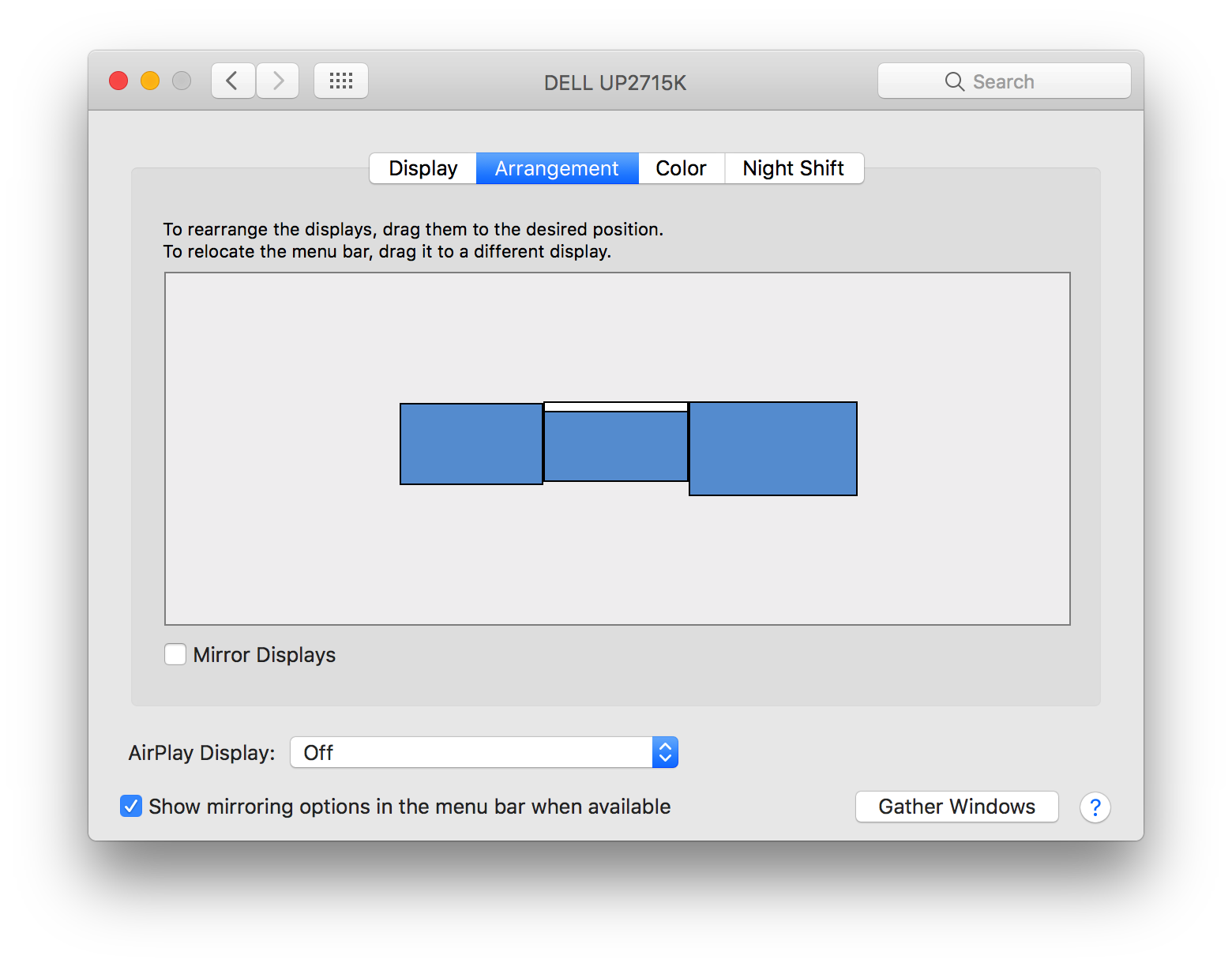
The central display is the Dell 5K at the “Default for display” resolution, which is Retina, i.e. an apparent resolution of 2560 x 1440 pixels (actually 5120 x 2880 pixels).
The Dell 4K on the left is at a scaled resolution of 2560 x 1440 pixels, which is not Retina, since the display’s native resolution is 3840 x 2160 pixels, but still looks almost as good as Retina when looked at from an angle at a greater distance from the eyes than the Dell 5K at the center of my desk.
And the Sharp 4K on the right is also at a scaled resolution, of 3008 x 1692 pixels, which, again, is not Retina, since the display’s native resolution is also 3840 x 2160 pixels, and is also not the same as the 2560 x 1440 resolution of the Dell 4K, because the Sharp 4K is physically bigger and can display more. Again, it doesn’t look as good as Retina, and for small font sizes there is a bit of eye strain on occasion, but on the whole, for most real-world applications, it works fine, and does look fairly close to Retina from an angle and at a greater distance.
The most important thing for me in this setup is that there is no significant change in the size of the UI elements when moving from one screen to the other. With these resolutions, it really does look almost like one extra-wide continuous desktop. I can easily move things from one screen to the next either manually or with Keyboard Maestro macros. It is definitely a significant improvement over my previous two-display setup, not just because of the improved quality of the displays, but also because there is much less of a discrepancy between the main display and the other displays.
In spite of my initial fears about buying non-Apple displays and about the risks associated with purchasing equipment whose use with a Mac Pro was not very well documented online, I must say that the setup was relatively painless. (The major pain described above was caused by the defective cable and the defective adapter. Without these defects, the transition would have been significantly smoother.) The only slight problem I encountered was that the default configuration of the Dell 5K included some sleep setting that didn’t agree with the Mac’s own sleep feature. I was sort of prepared for this by what I had read online, so I knew right away that I probably had to tinker with the Dell 5K’s own internal menu feature. I used that feature to turn the Dell 5K’s own sleep feature off, and now the display seems to go to sleep properly whenever I use macOS itself to put all my displays to sleep (via a hot corner).
The Dell 4K didn’t have any such problem and worked properly with macOS’s sleep feature right out of the box.
And how does it feel to work with these displays on a daily basis? Well, I have to admit that there was a period of adjustment when I first got the Dell 5K display. I was underwhelmed by the brightness levels that it was capable of (compared to the Sharp 4K) and the glossy finish took a little while to get used to. I had to turn the brightness up to a level that is very near the maximum that it is capable of, and I also had to turn the brightness of the Sharp 4K down a bit. The Dell 4K is pretty close to the 5K in term of its brightness. The whites on the Sharp 4K are a bit bluer than on the Dell displays, but I was able to calibrate things so that all three displays are pretty close in that respect, and indeed they are much closer to each other than my Sharp 4K and my Apple Cinema Display ever were. (The Apple Cinema Display’s whites were always much yellower than the Sharp 4K’s, no matter which calibration I used.)
Now that the Dell 5K has been discontinued, I am very happy that I managed to buy one when I did. Apple might come up with its own new range of displays in the future, but I am far from convinced that they’ll make any effort to support older Macs when they do. And since no other option is currently available, I am really glad that the reseller that I bought the display from through NewEgg.ca still had one in stock.
Thanks to this hardware upgrade, and to the relatively painless upgrade to macOS Sierra in early 2017, it really feels like my 2014 Mac Pro has been given a new lease on life, and this is almost as good as getting a new computer. It means that I certainly won’t have any problem waiting for Apple to come up with a new Mac Pro next year and won’t feel any pressure to be an early adopter of that new machine (as long as nothing breaks in this Mac Pro).
The 2013 “trashcan” Mac Pro might not have been a great success, but it works well for me, with the adaptations that I was able to make, namely with the use of external Thunderbolt hard drives relegated to the basement via a 30-foot Thunderbolt 2 cable so that I don’t have to hear them, and now with the use of a three-display setup that includes one central Retina display with a decent amount of screen real estate (unlike a 4K display used in Retina mode, which really doesn’t provide enough screen real estate) and two side displays with near-Retina resolutions.
None of this was cheap, but in my line of work, my computer is my main business expense and it is worth spending the extra amount to get something that I am really comfortable working with.